
Replace Spotlight
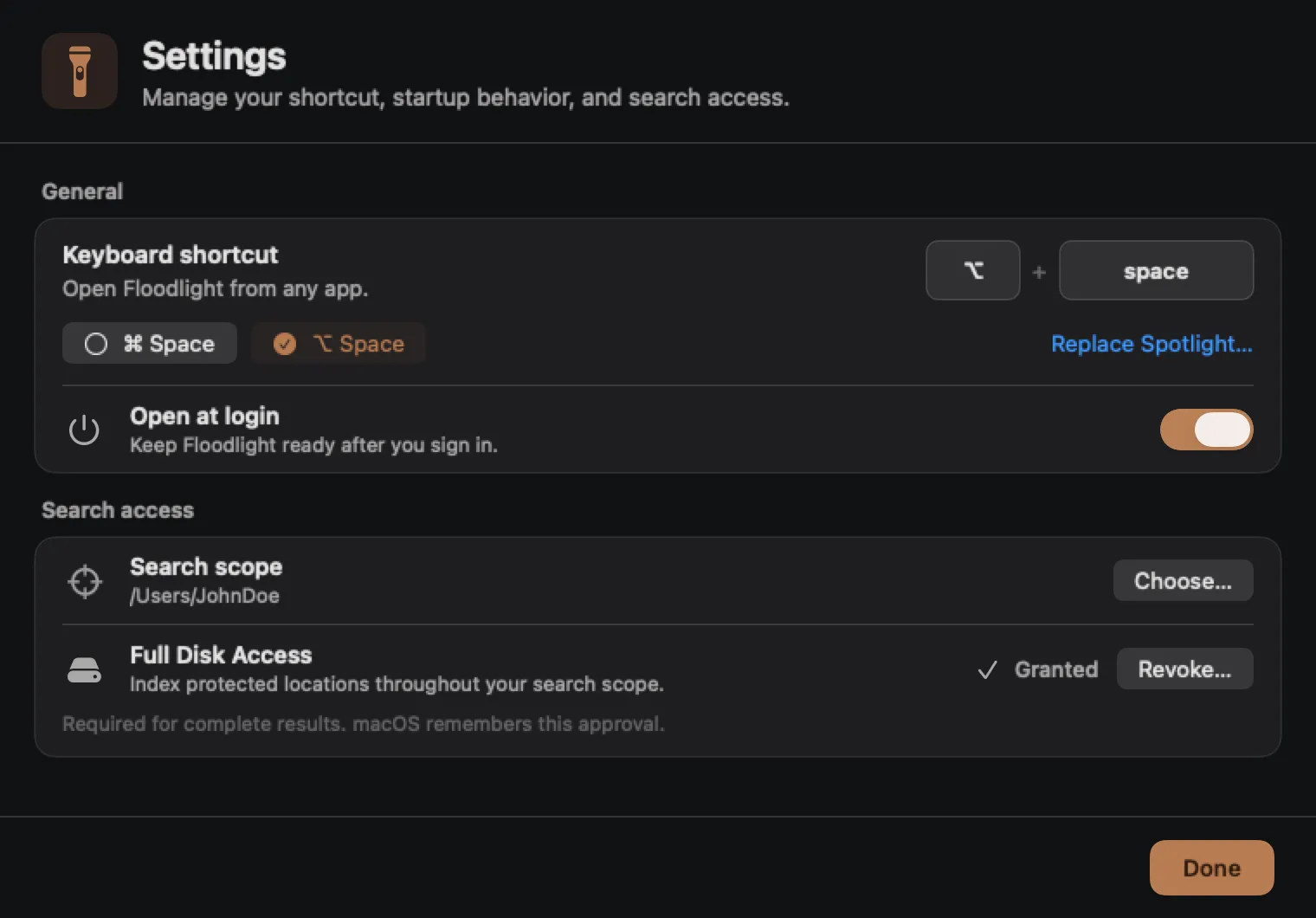
Floodlight tries ⌘ Space first. If another macOS feature already owns that global shortcut, Floodlight registers ⌥ Space instead.
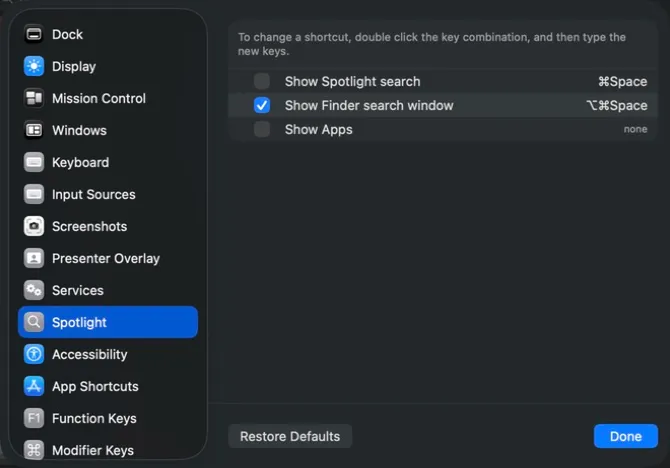
Disable Spotlight’s shortcut
Section titled “Disable Spotlight’s shortcut”- Select Replace Spotlight… in the setup window. After setup, the same action is available from the menu-bar flashlight under Settings….
- In the macOS shortcut controls, select Spotlight.
- Turn off Show Spotlight search.
- Return to Floodlight. It retries ⌘ Space automatically.
If the shortcut does not switch, select ⌘ Space once. No restart is required.
Check Input Sources
Section titled “Check Input Sources”If ⌘ Space still does not work:
- Open System Settings → Keyboard → Keyboard Shortcuts → Input Sources.
- Disable or change any language-switching action using ⌘ Space.
- Return to Settings… and select ⌘ Space again.
Confirm it is working
Section titled “Confirm it is working”Press ⌘ Space once from another application. Floodlight should appear above the current app with the insertion point already in the search field. Press it again, press Escape, or click outside the panel to dismiss.
Re-enable Spotlight later
Section titled “Re-enable Spotlight later”Disabling the shortcut does not remove Spotlight. To restore it:
- Click the Floodlight menu-bar flashlight and choose Settings….
- Select ⌥ Space so ⌘ Space is free.
- Open System Settings → Keyboard → Keyboard Shortcuts → Spotlight.
- Turn on Show Spotlight search, then select Done.
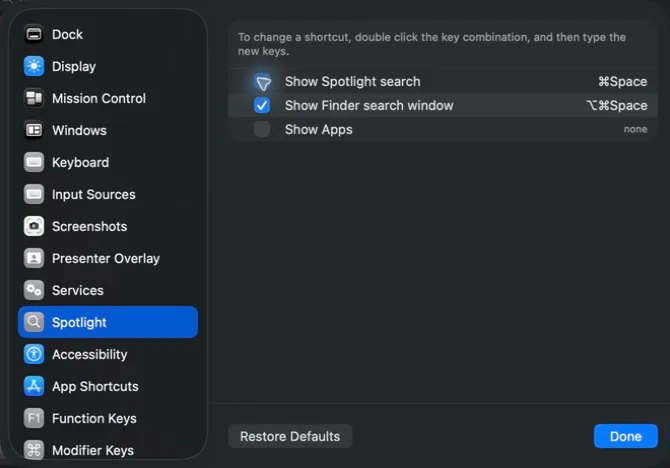
Afterward, ⌘ Space will open Spotlight and ⌥ Space will open Floodlight.
What this changes
Section titled “What this changes”Floodlight does not depend on Spotlight for filenames, folders, applications, or settings; it maintains its own local index. Disabling the keyboard shortcut does not disable macOS metadata indexing. Leave Spotlight indexing enabled if other apps use it for content search.